

Beginning with the Casino Mobile Experience
Starting to play at Wazamba Casino on a mobile device means setting up the right app, confirming your phone fulfills the technical requirements, and discovering how the interface is different from the desktop site. This guide walks you through each step so you can download, install, and start using the app without hold-ups or compatibility issues.
Grasping Device Compatibility and System Requirements
Prior to downloading anything, verify that your smartphone or tablet runs an operating system supported by the Wazamba Casino app. The Android version requires at least Android 7.0 Nougat, while iOS devices need to run iOS 12.0 or newer. These baselines guarantee that security patches, graphics rendering, and touch controls function correctly during gameplay.
Screen resolution also is important. Devices with at least 720 by 1280 pixels render game graphics without cropping, and RAM of 3 GB or more prevents slowdowns when several tables or slots are open simultaneously. If your device meets these specifications, you can expect stable performance; older hardware may encounter frame drops or longer loading times between rounds.
Efficiency, Bandwidth, and Battery Considerations
Broadcasting live dealer tables uses the most data because video feeds run continuously. A typical one-hour session requires between 250 MB and 400 MB, depending on video quality settings. Slots and table games without video streams require far less—usually under 80 MB per hour—because only outcome data is communicated with the server.
To minimize mobile-data consumption, the app includes a “Data Saver” toggle in the settings menu. Activating it lowers video resolution and halts non-essential animations. Battery drain is also mitigated by this mode, as the graphics processor works less intensively. Players on limited data plans should track usage after the first few sessions and adjust quality settings accordingly.
Exploring the Mobile Interface and Main Features
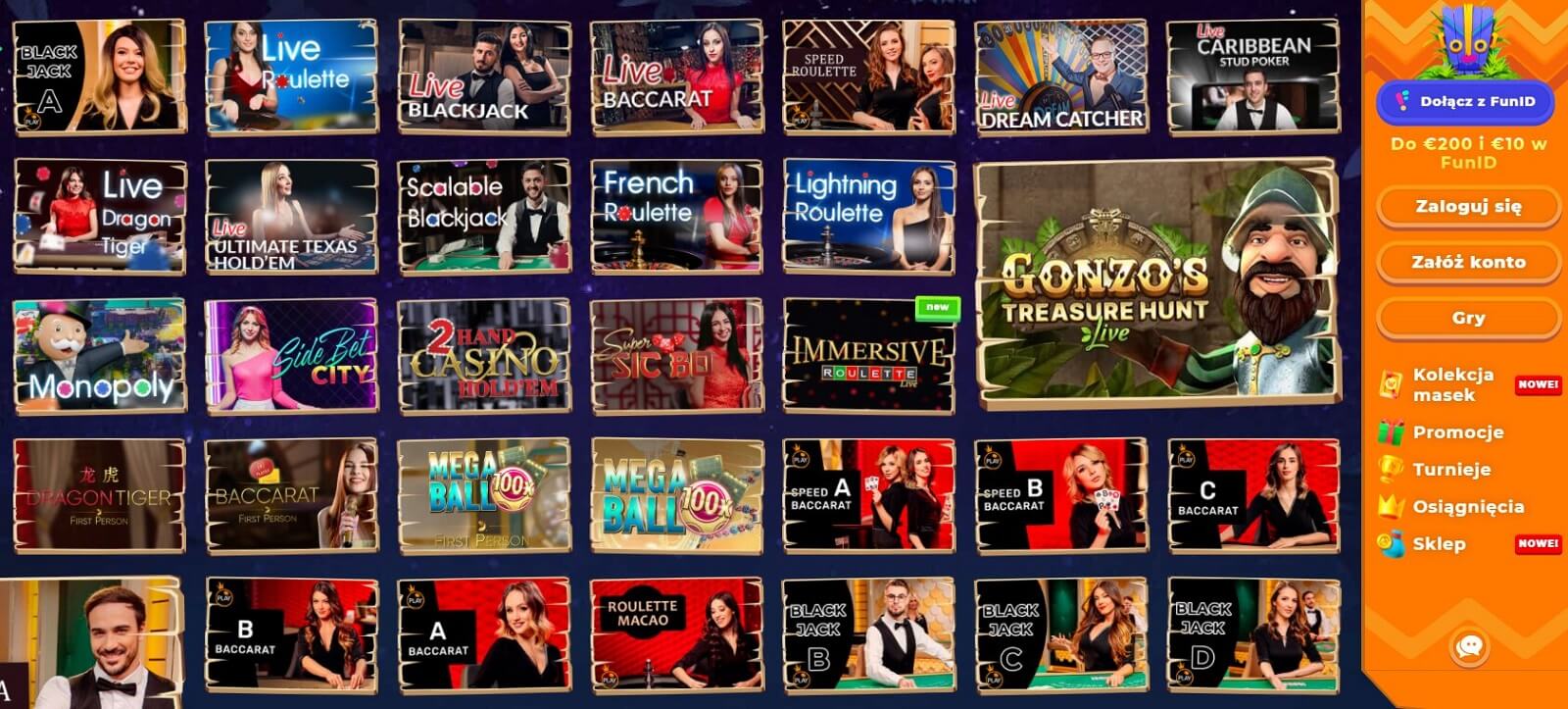
The mobile lobby organizes games into swipeable carousels instead of the grid layout found on desktop. Scrolling left or right reveals new categories such as “New Releases,” “Jackpot Slots,” and “Live Casino.” Clicking any tile launches the game in full-screen mode, removing browser bars and optimizing the play area on smaller displays.
Discovery and Refine Tools
A persistent search bar is located at the top of every screen. Typing a game name provides instant results, and filter chips let you narrow results by volatility, RTP range, or provider. These tools replace the multiple clicks needed on the desktop version, making it faster to locate a specific title during short play sessions.
Account Settings Shortcuts
The profile icon in the lower-right corner brings up a menu with deposit, withdrawal, and bonus sections. Each section reflects the desktop functions but employs larger tap targets suitable for thumbs. Transaction history shows up in a scrollable list, and receipts can be exported directly to the device’s files app without using a desktop computer.
Obtaining the App Directly from the Authorized Source
The safest way to obtain the Wazamba Casino app is to go to the specific mobile page on wazamba-online https://wazamba-online.com/de-at/app/.com/de-at/app/ from your phone’s browser. The site automatically identifies your operating system and displays the right download button. schnelle Fakten Pressing this button initiates the file transfer over a secure HTTPS connection, and the file size is typically between 45 MB and 65 MB based on the platform.
After the download ends, identify the file in your device’s notification shade or downloads folder. Android users must enable “Install from unknown sources” in their security settings before the installation wizard can continue. iOS users get an immediate prompt to verify the installation through their Apple ID, after which the app icon appears on the home screen.
Getting Started and First Run
Once the installer launches, proceed with the on-screen prompts. Android devices display a standard permission request for storage access and network connectivity; approving these enables the app to keep game data locally and connect to the casino servers. iOS devices request permission for notifications, which is helpful for obtaining bonus alerts or deposit confirmations.
After installation ends, open the app and enter the same login credentials you use on the desktop site. The first screen asks whether you want to activate biometric login. Enabling fingerprint or Face ID decreases the time devoted typing passwords on subsequent visits while maintaining account security through the device’s native authentication layer.
Protection Features and User Security on Mobile
The Wazamba Casino app secures all data in transit using TLS 1.3, the same protocol used by the desktop site. In addition, the app applies certificate pinning, which prevents man-in-the-middle attacks even on public Wi-Fi networks. Users get an immediate alert if the app recognizes an unrecognized network certificate.
Session timeouts are shorter on mobile than on desktop to adjust for the higher risk of device loss or theft. After fifteen minutes of inactivity the app locks, requiring either a PIN or biometric re-authentication. This setting can be modified in the security menu, but reducing the timeout further is advised for anyone who frequently gambles in public spaces.
FAQ
Can I utilize the same account across both the app and the desktop site?
Certainly. Your username and password remain identical across platforms. Any balance, bonus progress, or game history syncs in real time on both the mobile app and the desktop site, so you can change devices without losing your place.
Is the app accessible in the Apple App Store or Google Play Store?
Not at all. Because of regional gambling regulations, the Wazamba Casino app has to be downloaded directly from the official website. The installation process is easy and explained step-by-step on the mobile page at wazamba-online.com/de-at/app/.
How much storage space does the app require?
The installer file takes up about 45–65 MB, and after installation the app takes up about 120–150 MB including cached game assets. You can delete the cache from the settings menu if space becomes limited, without affecting login info.
Will I receive the same bonuses on mobile as on desktop?
All standard deposit bonuses, free-spin offers, and loyalty rewards can be accessed inside the app. Occasionally, mobile-exclusive promotions appear as push notifications; these offers are also listed in the promotions section of the lobby.
What can I do if the app will not install on my Android phone?
First verify that your operating system is Android 7.0 or higher. Then verify that “Install from unknown sources” is enabled for your browser. If the problem persists, remove any partial download and try again over a stable Wi-Fi connection.
Once the app is installed and running smoothly, the next practical step involves completing your first deposit directly from the mobile cashier so you can check both funding speed and game responsiveness on your specific device. This small action verifies that every setting is configured correctly and allows you to begin enjoying the full mobile casino experience without further delays.
